

Beta · web app
Try Possible Voice before launch
The beta is Possible Voice as a web app: the same app, opened from your browser and with its own icon on your home screen, with no app store involved. Try it with your friends and tell us what you would improve.
It switches on when the Possible Voice server opens. We will let you know here as soon as it is ready.
- iPhone and Android
- Free, with no ads
- Nothing to download





Install the web app
There is nothing to download: the web app is added to your home screen and opens full screen, like an app.
With Safari or Chrome, from the Share button.
- Open the web app in Safari (or Chrome) with the “Open the web app” button on this page.
- Tap Share (the square with an arrow pointing up). If you do not see it, tap “…” in the Safari bar.
- Scroll down and choose “Add to Home Screen”.
- Leave “Open as Web App” on, if you see it, and tap “Add”.
- Open Possible Voice from the new icon and sign in with your email and password.

Add it from the web app
Tap “Add to Home Screen” while the web app is open, not this page: otherwise the icon would open this website instead of the app.
Since iOS 16.4 you can also add it from Chrome or Edge on iPhone, with their Share button.
With Chrome, from its menu.
- Open the web app in Chrome with the “Open the web app” button on this page.
- Tap the three-dot menu (at the top right).
- Choose “Install app”. On some phones it says “Add to Home screen”.
- Confirm and open Possible Voice from the new icon. Sign in with your email and password.
Prefer the full app?
On Android you can also install the APK from Downloads. It is the full app: voice keeps working while you play.
What you can try
The web app is the same Possible Voice that is coming to the stores. These are the parts we most want you to test.
Voice rooms
Create a room, invite your friends with a link and join public rooms.
Room chat
Type in the room chat while you talk.
Frames and backgrounds
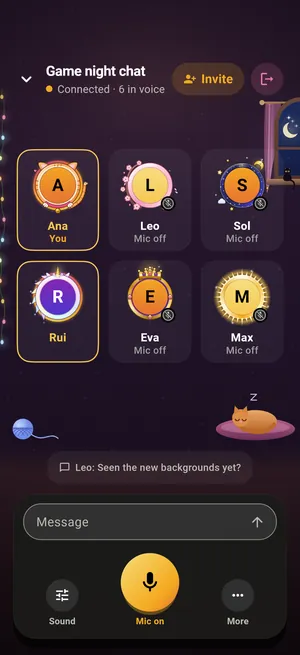
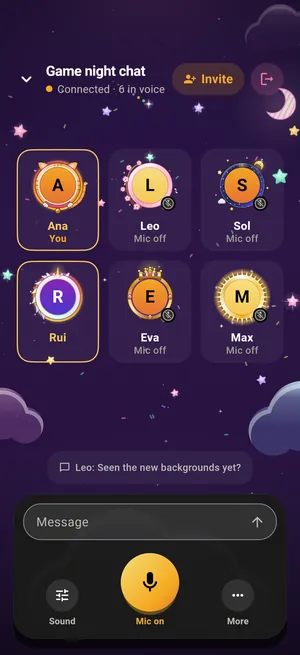
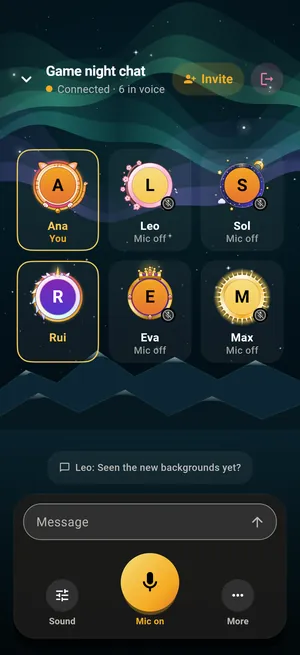
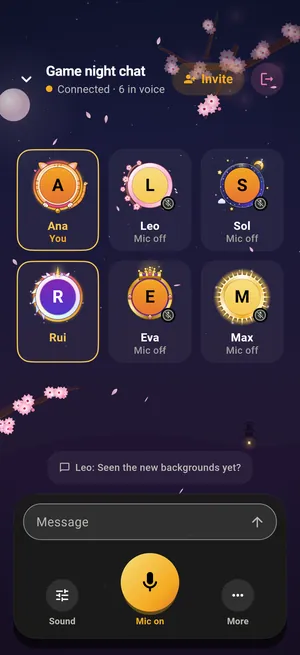
Put a frame on your photo, pick your room's background and, if you like, one of your own that only you see in rooms.
Talking with the app open
Talk and listen with the web app on screen: your microphone, the indicator of who is speaking and the voice quality.





What the web app does not do
It is a beta in the browser, so it has limits the app does not have. Better to know them before you try it.
- On iPhone, voice cuts out if the web app goes to the background or the screen locks. Keep it open while you talk.
- To talk while you play, use the app: the APK from Downloads on Android, and the App Store and Google Play versions when they arrive.
- You sign in with email and password. Google and Apple are not in the web app yet.
- No ads and no purchases: rewarded-ad buttons show that they are available in the app, and plans are bought in the Android or iPhone app.
- Screen sharing and some phone audio settings are only in the app.
- Room music (listening to YouTube together) is only in the app.
What you need
- iPhone
- iOS 16.4 or laterRecommended: iOS 18.4 or later.
- Android
- An up-to-date ChromeAny phone with a recent version of Chrome.
- Account
- Email and passwordYou can create it in the web app itself.
- Microphone
- Browser permissionAllow it when the web app asks, so you can talk.
Questions about the beta
Can't hear anyone?
Tap the screen once: browsers need a tap before they play sound. Also check your phone's volume.
Why does it ask for the microphone again?
Safari may ask for permission every time you open the web app. That is normal: allow it so you can talk.
Do I have to sign in again after installing it?
On iPhone, yes: the installed web app does not share its session with Safari. Sign in with the same email and password.
Is it the same account as in the app?
Yes, if you sign in to the app with your email and password: use the same ones. If you sign in to the app with Google, not yet: the web app does not have "Continue with Google" or Apple yet.
Does the beta cost anything?
No. It is free, with no ads and no purchases.
Tell us how it went
Your feedback decides what we fix first. Tell us what worked, what failed and what you would improve.
If something fails, include:
- Your phone model and your iOS or Android version.
- What you were doing and what happened.
- A screenshot, if you can.
The email opens with the subject “Beta Possible Voice”.